How do I send a secure email from the web portal?
The Secure Exchanges online portal allows you to send a secure message without using your email application (Outlook, Gmail, etc.). Here is how.
Step 1: Log in to the online portal
Log in to your account, then click on "Send a secure email".
Once logged in, you will see the following interface.
Note: For more details on logging in, see Log in to the Secure Exchanges online portal.
Description of the interface buttons and options
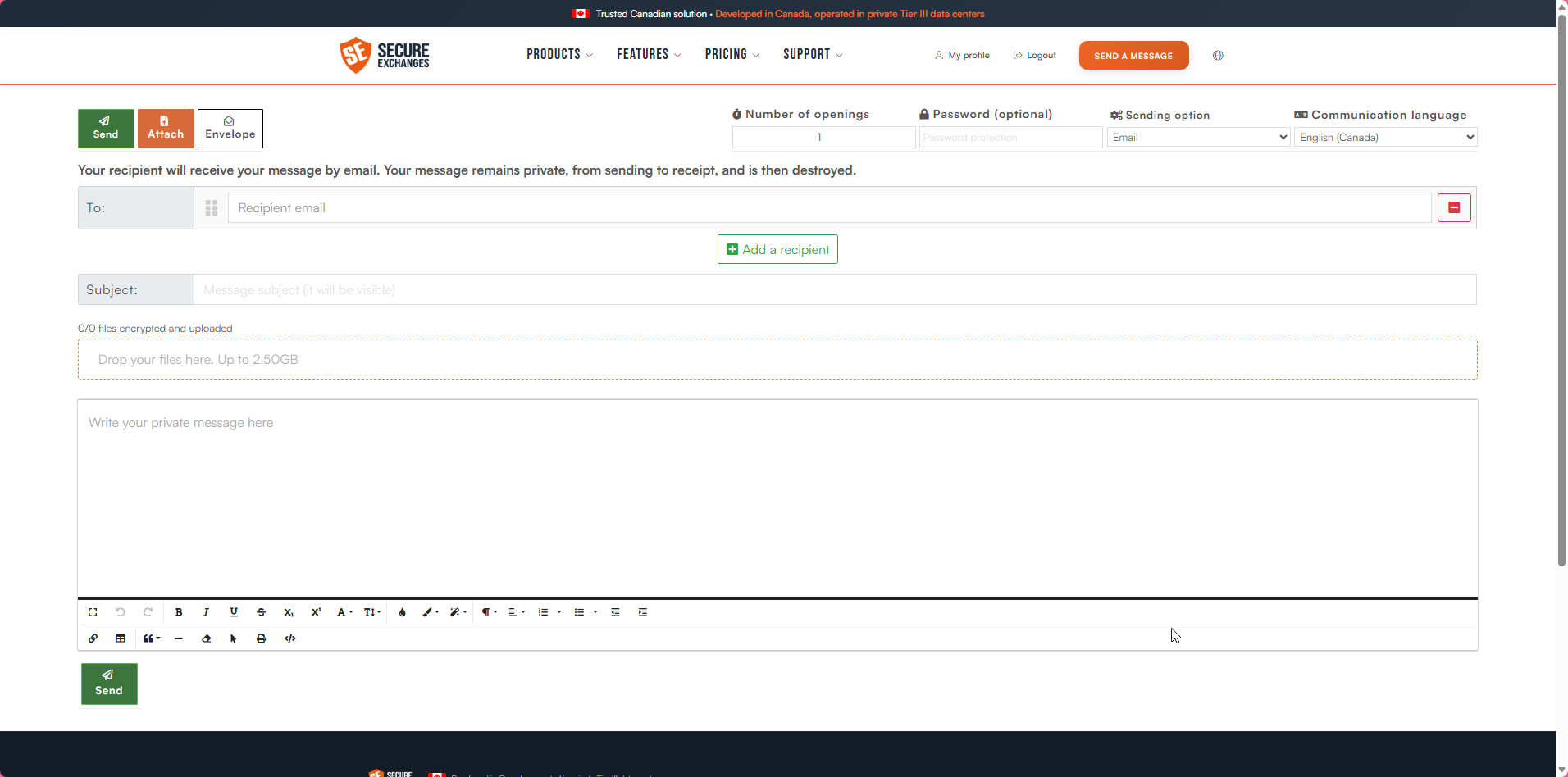
- 1. Send: main button to transmit the secure message once the recipients have been added, the message has been written and the attachments are ready, if applicable.
- 2. Attach: lets you add files to your message. You can click "Attach" or drag and drop your files into the "Drop your files here" area.
- 3. Envelope: generates a secure envelope you can send to your recipient so they can send you documents or information in a protected manner. See the full procedure: How do I send a secure envelope from the online portal?
- 4. Number of openings: determines how many times your recipient can open your secure message. The default is one opening. You can increase this number.
- 5. Password (optional): adds extra protection to your message. You must then send this password to the recipient by a separate means, for example by phone.
- 6. Sending option: selects the transmission method.
- Email: your recipient will receive your message by email.
- SMS: your recipient will receive your message by text message.
- Email and code by SMS: your recipient will receive your message by email and a random code by text message to access it.
- SMS and code by email: your recipient will receive your message by text message and a random code by email to access it.
- 7. Communication language: defines the language used in the interface your recipient will see, French or English.
- 8. Add a recipient: adds one or more recipients to your message. Each recipient can be positioned in a specific order. The area to the left of the "Recipient Email" field lets you move recipients to define a specific sending order, especially useful for signatures.
- 9. Delete a recipient: the red button removes a recipient from the list.
- 10. Subject area: lets you enter the subject of the message, visible to the recipient.
- 11. Message composition area: main section for writing the content of the secure email.
Need help?
Our team is available to assist you. Write to us at support@secure-exchanges.com