How do I send a document for signature using Secure Exchanges via Outlook Web?
Secure Exchanges lets you send a PDF document for signature directly from Outlook Web, without leaving your mailbox. This guide walks you through composing the message, attaching the document, defining the signature areas and sending the document to your signatories.
Prerequisites
To use the Secure Exchanges signature system, an Advanced or Pro licence is required. For more information about our licence options and to upgrade, see the A package tailored to your needs page.
Step 1: Compose the message
Start by writing your email as usual by clicking on "New Message". Enter the recipients' addresses, the subject and the body of the message.
Step 2: Attach the document
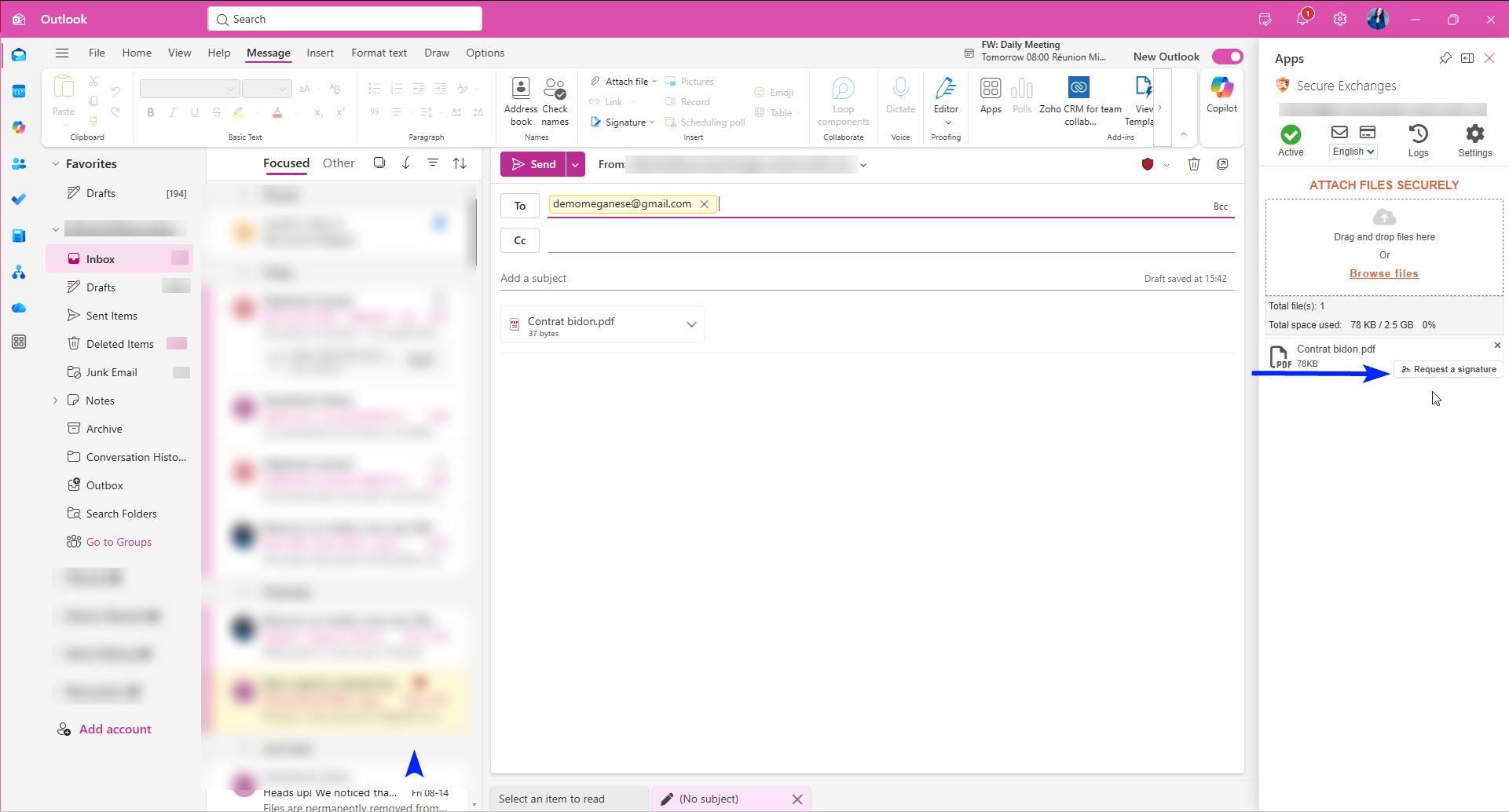
In the Secure Exchanges window on the right of your screen, drag and drop the file into this window or use the "Select your files" option to add it from your computer.
Step 3: Create the signature areas
Use the signature area icon to open the signature area configuration window.
Step 4: Place the signature areas in the document
This is where you define precisely who should do what, and where in the document.
If the document already contains PDF fields
Some PDF documents already contain embedded fields (text boxes, checkboxes, signature fields, etc.). If so, Secure Exchanges automatically detects them and offers you a choice of how to manage them:
- Include all detected fields: all existing zones are imported as is.
- Select the desired fields: you choose which of the detected fields to keep.
- Deny detection: existing fields are ignored, you draw everything manually.
Place an area manually
Before drawing each area, make sure you select the correct signatory.
- In the left column, click on the signer for whom you want to place a zone. Their name must be active (highlighted in orange).
- In the document, draw a rectangle where this signatory will need to intervene.
- Choose the field type from the menu that appears.
Repeat these three steps for each area to be placed, changing the signer in the list each time necessary.
Available field types
- Signature: signature area
- Initials: area for initials
- Text box: single line text field
- Text area: multi-line text field
- Date selector: date selected via a calendar
- Date of signature: date of signature
- Number: digital field
- Checkbox: checkbox
- Radio button: a single choice among several options
- Drop-down list: selection from predefined options
- List of options: multiple selections
Definition of the "Sign and send" option
This option allows you to sign a document yourself and automatically send the final signed copy to one or more recipients. After placing the signature areas, you sign directly within the interface. Once the signature is complete, the final document is generated and sent to the selected recipients.
Example: you sign a certificate or contract that requires only your signature, you sign at the same time as you define your areas, then the final signed version is automatically sent to your client, supplier or partner.
Correct the assignment of a zone to the wrong signatory
It can happen that an area is associated with the wrong signer, especially after an automatic import of fields, or if you forgot to change the active signer before drawing an area.
To correct this:
- In the left column, select the correct signer, the one to whom the area should belong.
- Click on the "Zones" button in the top right corner of the screen.
- Select the area or areas to be reassigned.
The selected areas are automatically associated with the active signer.
Step 5: Apply and send
Once all the areas are defined and correctly assigned to each signatory:
- Click on "Apply" (top left corner of the screen).
- Check or adjust the sending settings if necessary.
- Click on "Send with Secure Exchanges".
The chain signature process begins. The first signer receives the document by email, signs it, and the document is automatically passed on to the next signer until all signatures are collected. CC recipients receive the final copy once the process is complete.
Need help?
Our team is available to assist you. Write to us at support@secure-exchanges.com