How do I install SESAR (Secure Exchanges Send And Received)?
This simple and detailed guide walks you through the configuration and installation of SESAR (Secure Exchanges Send And Received).
Prerequisites
The machine on which SESAR will be installed must have the following specifications:
- Operating system: Windows
- Minimum .NET Framework 4.8
- Minimum memory 8 GB
- Sufficient disk space (SESAR does not compress): formula = number of files per transfer x file size x retention years
- Good internet link
Warning: Ensure that the person who will configure SESAR has the rights to create new users in the Secure Exchanges online portal.
Step 1: Install SESAR and create the SESAR user
- Install the latest version of SESAR, Downloads and plugins.
- Once the installation is complete, log in to the Secure Exchanges online portal. If needed, see Log in to the Secure Exchanges online portal.
- Create a SESAR user with a valid email address. If needed, see How do I add new users to a business account?.
It is crucial that the address is valid, as all alerts and notifications will be sent there. This could be a distribution list.
Note: Ensure that the user has access to this email address and that it is different from the administrator's email address.
Step 2: Assign the SESAR licence to the user
- From the user management interface, assign a SESAR licence to the SESAR user you have just created. If needed, see How do I assign a license to a user?.
This step is essential to enable access to SESAR features.
Step 3: Configure the SESAR settings
- Click the gear icon to access the SESAR configuration interface.
- In the SESAR configuration name field, assign an identifiable name to this configuration.
- In the Temporary folder path field, define a path to the temporary folder where temporary files will be uploaded, on the server where the SESAR service will be installed.
Warning: If you have multiple instances, each instance must have a unique name.
Note: It is essential to define a secure storage folder for synchronized data. You also have the option of encrypting this data locally, which is highly recommended to ensure information security.
Step 4: Generate the configuration and confirm it
- Once the setup is complete, click Generate. A window will display a password.
- Write down this password: it is required to unlock the confirmation email you will receive at the SESAR email address associated with your licence.
- Keep the two files that are downloaded at the same time: they are used in step 5.
- Confirm the SESAR configuration using the received email and the displayed password.
Warning: Please note that you have 10 minutes to confirm, otherwise the message will be deleted.
Warning: You must be logged in as an administrator or user with the rights to authorize the activation of SESAR.
Step 5: Start the service and verify the installation
- Start the SESAR service.
- Place the two previously downloaded files in the following path: <sesar installation folder>\installer\NewInstance
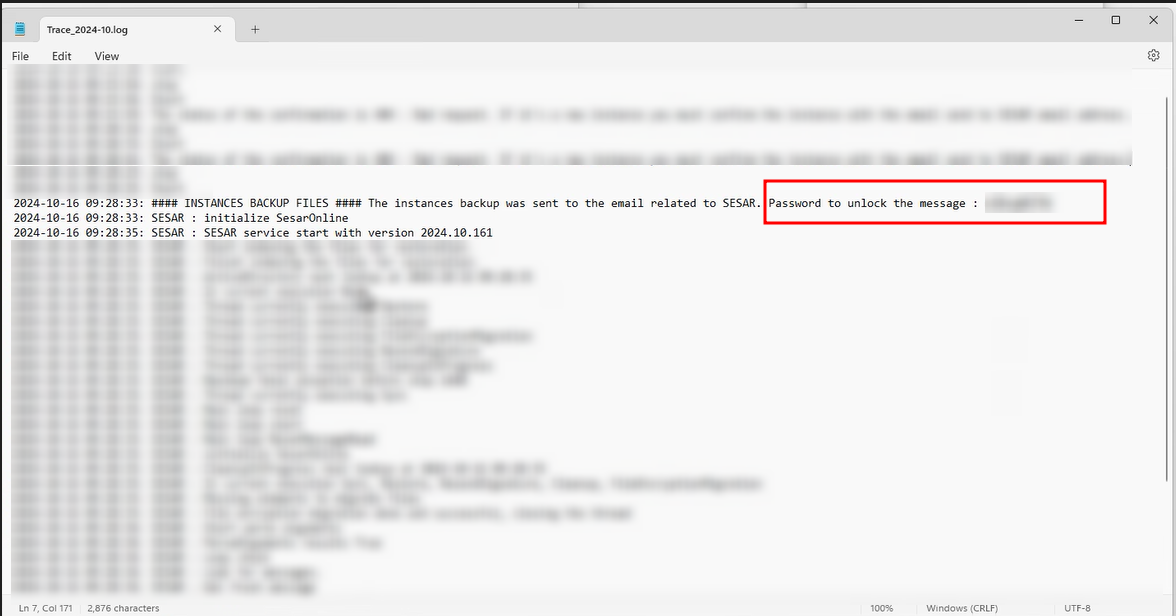
- Consult the logs to confirm that the configuration has started correctly; they are available in the following path: <sesar installation folder>\Trace_[month].log
- If the installation was successful, you will receive a password-protected email, at the SESAR email address and at the email addresses of your account administrators, containing the instance.json file.
Note: The files you placed should disappear after a maximum of one minute.
Note: The password to open this email is found in the log file consulted at point 3 above.
Warning: You must keep this file in a secure location, as it contains your encryption keys.
Companion video: SESAR installation (video)
Stay up to date on the latest news, updates and cybersecurity tips from Secure Exchanges! Follow us on LinkedIn so you don't miss a thing: Secure Exchanges on LinkedIn
Need help?
Our team is available to assist you. Write to us at support@secure-exchanges.com
Related Articles
- What is SESAR (Secure Exchanges Send And Received)?
- What are the configuration parameters for SESAR?
- What are some frequently asked questions about SESAR?
- Integrating a Webhook with SESAR: everything you need to know
- How do I configure SESAR with Azure Active Directory?
- How do I uninstall SESAR?