Resend a document for signature
To resend a document for signature to a recipient who has lost or deleted the original email, you must have:
This feature is available in the online portal under “Signature tracking.”
1. Resend a document for signature
The “Resend the email” button allows you to generate a new signature link based on the copy of the document archived in your SESAR.
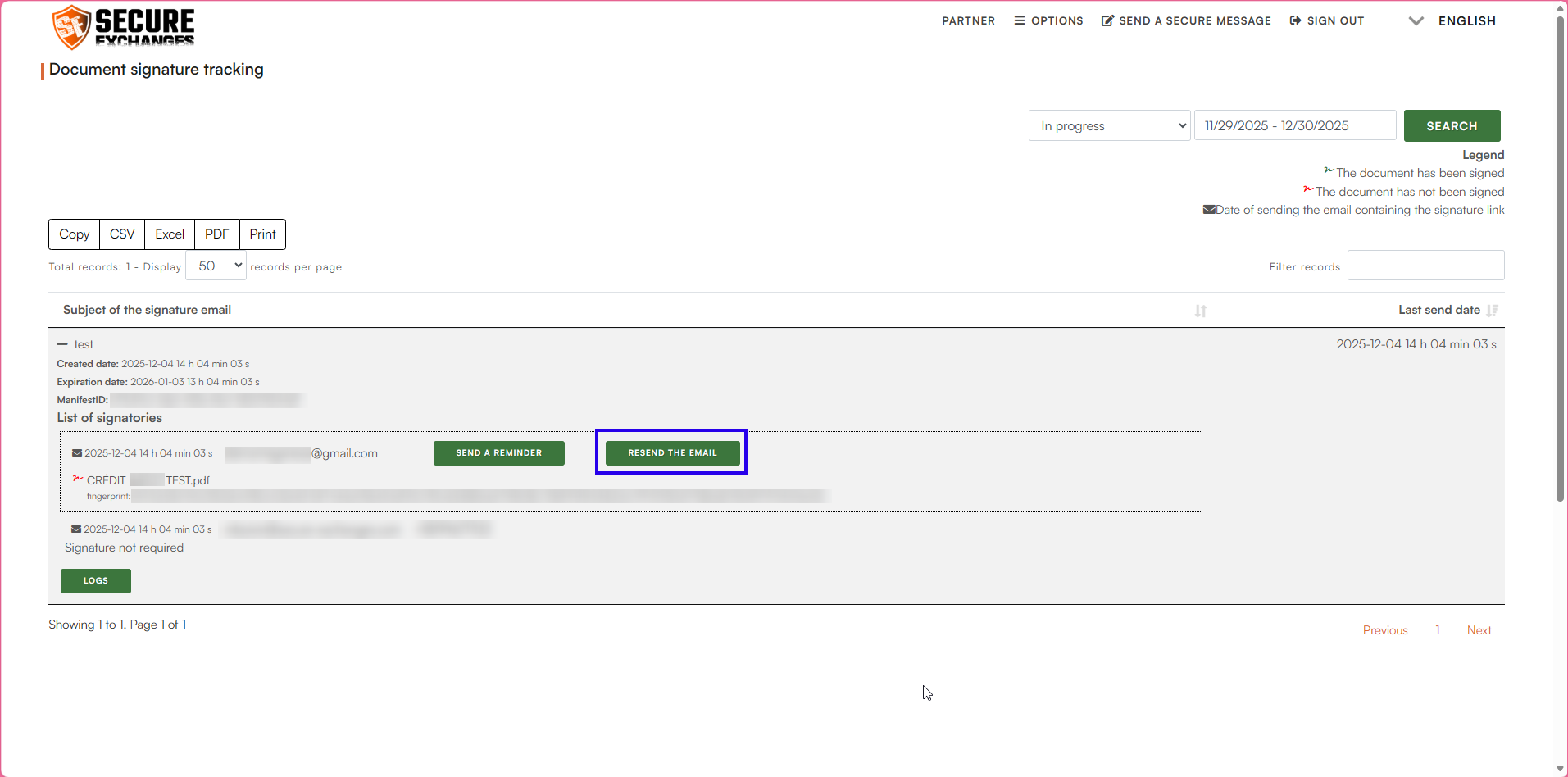
This feature is useful if:
the signer deleted the email;
the signer claims they did not receive it;
the original link has expired.
How it works
When you click “Resend,” a window opens with the option to add a password (optional but recommended).
Your SESAR receives the instruction and retrieves the document that is signed or currently in the signing process.
SESAR then creates a new secure link and automatically sends it to the recipient.
 Important notes
The original email becomes unavailable; only the new link will be valid.
SESAR checks requests every minute, so sending may take a few minutes.
The resend date and time are displayed in the tracking view for confirmation.
Related Articles
Track documents sent for signature
The signature tracking feature is available only for users with a Pro license. It allows you to view the status of your signature requests, identify pending actions, and send reminders to signers. 1. Access signature tracking Log in to your account ...
Create and manage signature templates
The Secure Exchanges portal allows you to save signature templates to speed up the sending of documents for signature. You can create your own templates or share them across your entire organization. 1. Access template management Log in to your ...
View my logs in the online portal
The logs in the Secure Exchanges online portal allow you to view all activities related to your messages: sends, opens, downloads, signatures, IP addresses, and more. You can also delete a message before it expires and export your logs for archiving ...
Add licenses to my business account
You can add and manage licenses directly from your online account. This guide explains how to purchase licenses and assign them to users in your organization. 1. Sign in to the Online Portal Before adding or assigning licenses, log in to the Secure ...
Overview of my account management options
The Secure Exchanges online portal allows you to manage several aspects of your account, including your user profile, security settings, and usage preferences. Below is a clear and structured overview of all the options available in your user space. ...
