Change the time zone of my account
The time zone set in your Secure Exchanges account ensures that local time is displayed correctly across all your activities: sends, logs, signatures, downloads, and notifications. It’s important that this setting matches your region so timestamps reflect the correct time.
Here’s how to change it:
1. Sign in to your account
Access the Secure Exchanges online portal and log in.
2. Select your time zone
In the “Time zone” section, use the dropdown menu to select the zone that corresponds to your region (e.g., America/Toronto, Europe/Paris, etc.).
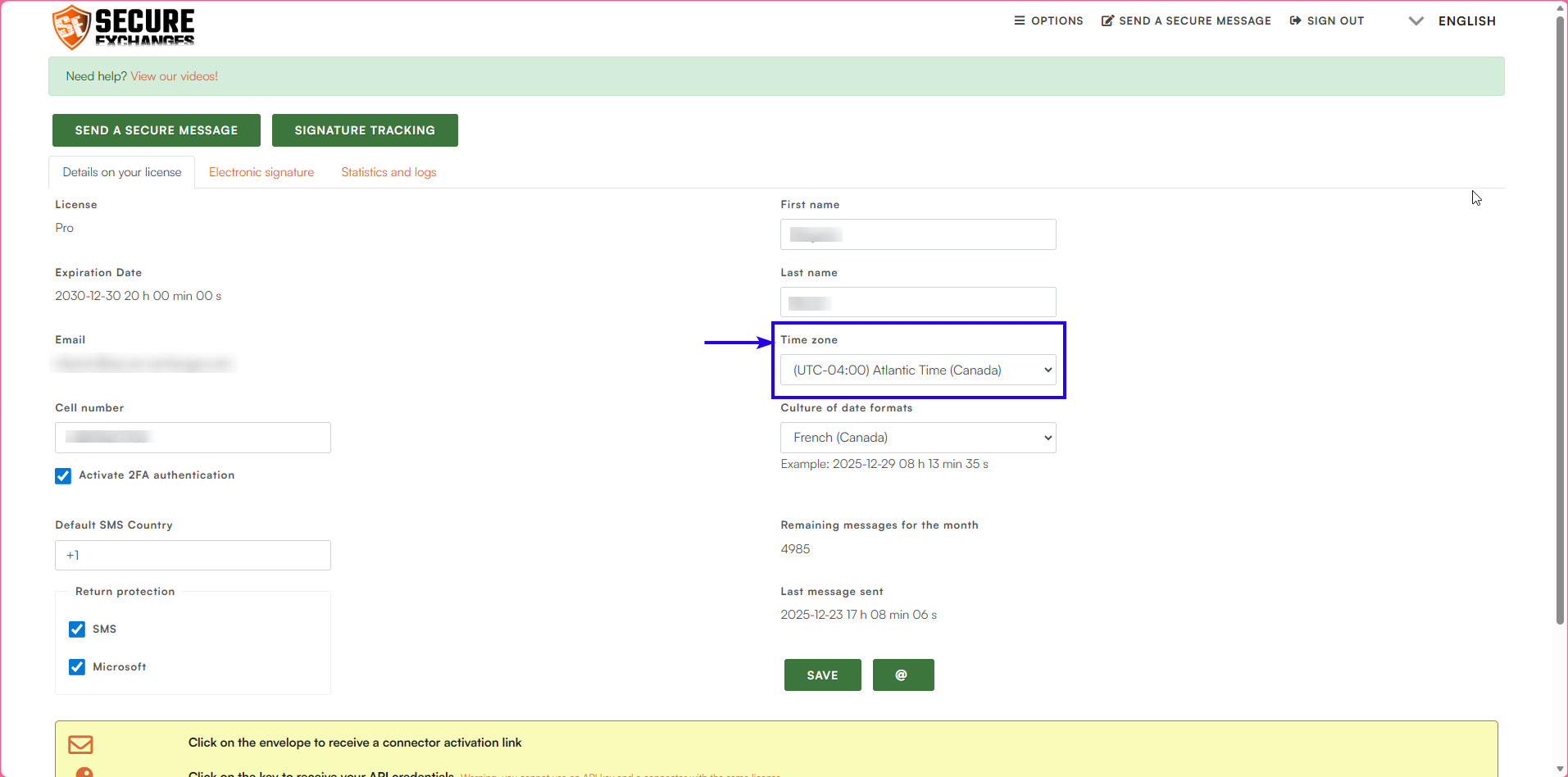
3. Save your changes
Click “Save” to apply the update.

Related Articles
Edit a user’s information
The Secure Exchanges portal allows account administrators to edit the information and security settings of an existing user. Step 1 – Log in to the online portal Log in to your account via the Secure Exchanges online portal. Need help? How to log in ...View my logs in the online portal
The logs in the Secure Exchanges online portal allow you to view all activities related to your messages: sends, opens, downloads, signatures, IP addresses, and more. You can also delete a message before it expires and export your logs for archiving ...Change my credit card information
Only account administrators have access to billing information and are authorized to update the credit card associated with the account. To update your payment details, follow the steps below. Step 1 – Access the Billing section Log in to your Secure ...Send a secure message from the online portal
The Secure Exchanges online portal allows you to send a secure message without using your email application (Outlook, Gmail, etc.). Here’s how to proceed. 1. Sign in to the online portal Sign in to your account, then click Send a secure message. Once ...Downgrade to a lower-tier license
You can change your Secure Exchanges license type at any time. However, the procedure varies depending on the direction of the change: To a higher-tier plan (Eco → Advanced → Pro): this is an upgrade To a lower-tier plan (Pro → Advanced → Eco): this ...