How to decrypt a message saved on SESAR using SECT Tool

How to decrypt a message saved on SESAR using SECT Tool

Decrypting messages stored on SESAR can be done by following a series of simple steps using the SECT Tool. Here is a detailed guide to walk you through the process.

Steps to follow:

Step 1: Open the unencrypted version of the SESAR configuration file

Start by opening the unencrypted SESAR configuration file. This file contains the information needed to decrypt your messages, such as private keys.

Step 2: Open the SECT Tool

Launch SECT Tool, the application dedicated to decrypting messages encrypted via SESAR.

Step 3: Move the encrypted files to a temporary folder

Identify the encrypted messages you wish to decrypt. Move them to a temporary folder to facilitate processing.

Step 4: Fill in the key fields in SECT Tool with the configuration file

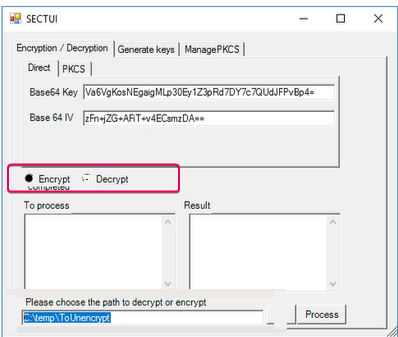
Using the SESAR configuration file, fill in the key fields in SECT Tool. Ensure the information provided is correct, as it is essential for successful decryption. Refer to the image below.


Notes
As you can see, the Base64 Key is highlighted in blue in the image. This is everything before the @ symbol . The Base64 IV is highlighted in pink in the image and represents everything after the @ symbol on the 'PrivateAESKey' line in your SESAR configuration file.

Step 5: Enter the path to the temporary folder containing the messages to be decrypted

Once the keys have been entered in SECT, select the desired action (Encrypt or Decrypt). Finally, specify the path to the temporary folder where you placed the encrypted files in the designated area.

Step 6: Click on 'Process'

Once all fields are filled in and the temporary folder path is specified, click the "Process" button in SECT Tool to start the decryption. SECT Tool will decrypt the messages placed in the specified temporary folder.
Info
To re-encrypt messages, follow the same procedure, but check the Encrypt action.

    • Related Articles

    • What are the configuration parameters for SESAR?

      Because SESAR operates on a tenant basis, an organization could have multiple tenants. Therefore, the configuration file is structured so that the service is installed only once, but can retrieve information from all tenants. Therefore, each SESAR is ...
    • What is SESAR?

      Presentation of the SESAR Service SESAR ( Secure Exchanges Send and Receive ) is a Windows service designed to integrate and secure your communications sent via Secure Exchanges , whether stored locally or in the cloud. It acts as a true vault for ...
    • SESAR (Secure Exchanges Send And Received) Installation Guide

      Here is a simple and detailed guide to help you configure and install SESAR. 1. Creating the SESAR user Start by installing the latest version of SESAR, available on our website. The machine on which SESAR will be installed must have the following ...
    • Integrating a Webhook with SESAR: everything you need to know

      The SESAR webhook notifies your system when a file has been received and processed. It relies on an HTTP request containing a structured object and must be configured correctly to ensure seamless integration with your environment. Webhook Objective ...
    • How to configure SESAR with Azure Active Directory?

      1. Creating an application: Go to Azure Active Directory . Next, on the left bar click on "App registration" and click on "New registration". Enter a name and then, under "Supported account types", check the first option "Single tenant". Finally, ...