Set up Secure Exchanges in Outlook
Secure Exchanges offers several configurable settings directly in Outlook, allowing you to adjust the security level, sending behavior, and signature management according to your needs. This article explains each settings tab, what it is used for, and how to configure it.
 Accessing Secure Exchanges settings : In Outlook, click Secure Exchanges, then Settings.
A window will open with several tabs, described below.
Message Settings tab
This tab defines the default behavior of secure emails, both for sending and receiving.
Message sending options
Send using my own email server
Enabled by default. Emails are sent through your email server.
If disabled, secure messages will be sent via Secure Exchanges servers.
Read receipts
Allows you to receive a notification when a recipient opens a secure message.
Enabled by default.
Require password
Forces the use of a password for all secure messages sent.
Require SMS code
Requires SMS code verification for every message sent.
Always use Secure Exchanges
Prevents sending unsecured emails. The “send without securing” option will no longer be available.
Do not encrypt sent items
Keeps an unencrypted copy of messages in your Sent Items folder.
This option is not recommended for security reasons.

Incoming email options
Automatically decrypt incoming emails
Automatically decrypts received messages.
Not recommended.
Encrypt email upon closing (beta)
Encrypts the message after it has been read and closed.
Not recommended.
Automatically download attachments
Automatically downloads attachments from incoming messages.
Not recommended.
Attach files to the email if possible (beta)
Adds attachments directly to the email in clear text, if size allows.
Not recommended.
Attachment download directory
Defines the location where attachments will be downloaded automatically.
Secure by default
Defines what is automatically secured when sending:
the message body
or the attachments
Language
Interface language
Display language of Secure Exchanges.
Communication language
Language used in messages sent to recipients.
Message opening options
Default number of openings when protected by SMS code or password
Defines how many times a message can be opened when additional protection is enabled.
Default number of openings
Number of openings allowed without additional protection.
Envelope Options tab
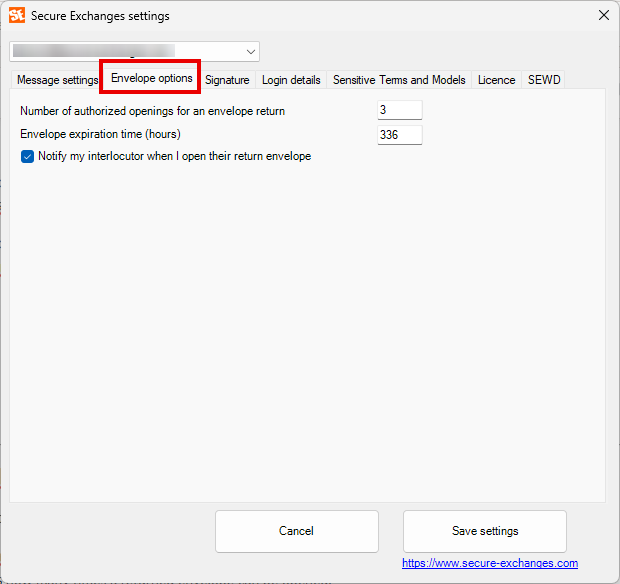
This tab configures the default behavior of secure envelopes.
Number of allowed openings for envelope return
Defines how many times a returned envelope can be opened.
Envelope expiration delay
Defines the lifespan of an envelope, in hours.
Maximum: 720 hours (30 days).
Notify my contact when I open their return envelope
Notifies the sender when you open their returned envelope.
Signature tab
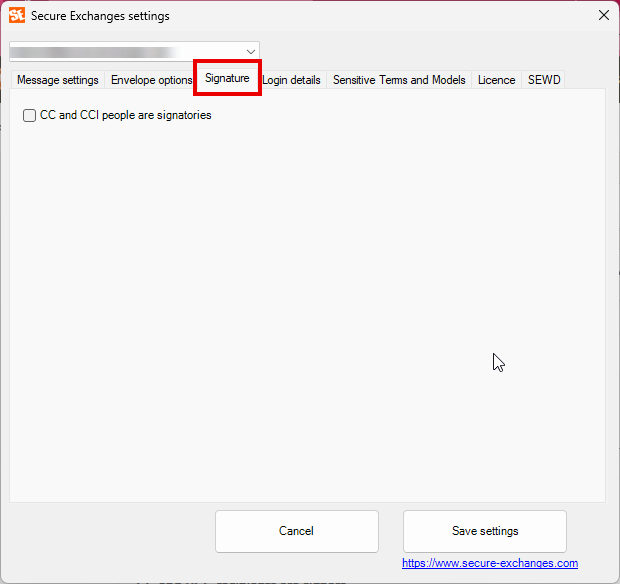
This tab manages electronic signature behavior.
CC and BCC recipients are signers
If enabled, all CC and BCC recipients must sign the document.
If disabled, only recipients in the “To” field will be invited to sign.
Connection Information tab
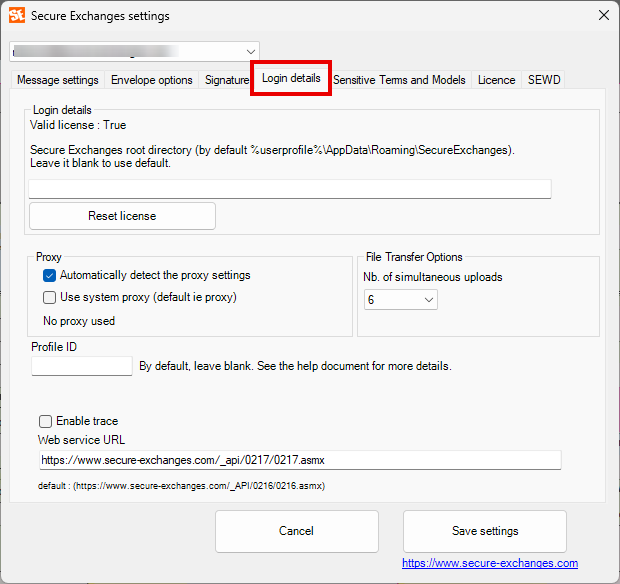
This tab contains technical settings related to connection and licensing.
Valid license
Indicates whether your license is active.
Secure Exchanges root directory
Local location of Secure Exchanges temporary files.
Reset license
Used to resolve certain license-related issues.
Proxy
Automatically detect proxy settings
Use system proxy
Use these options if your network relies on a proxy.

File transfer options
Number of simultaneous downloads
Defines the number of simultaneous transfers (default: 6).
Profile ID
Advanced setting. Can be left blank.
Enable tracing
Used for troubleshooting at the request of Secure Exchanges support.
Web service address
Communication URL with Secure Exchanges. Do not modify unless instructed by support.
Sensitive Terms and Patterns tab
Enables sensitive content detection.
Enable sensitive content detection
Analyzes message content to detect sensitive terms.
Keywords are configured through the Secure Exchanges portal.
Refresh
Updates the list of configured terms.
License tab
Displays:
features included in your license
your license type
logs, often requested by support during troubleshooting
SEWD tab (Secure Exchanges Watch Dog)
Enable Secure Exchanges Watch Dog
Ensures proper operation of Secure Exchanges. This option must be enabled.
Launch at startup
Starts Watch Dog when the computer starts to prevent Secure Exchanges from being disabled by Outlook.
Related Articles
The Secure Exchanges ribbon in Outlook: available shortcuts and options
The Secure Exchanges ribbon in Outlook brings together various options and shortcuts related to email security and your license. Using the drop-down list below, you can learn more about each category (Status, Envelope, Chat, etc.). Status section The ...Send a secure confidential email from Outlook
This article explains how to send a secure email with Secure Exchanges in Microsoft Outlook, as well as the options available before sending. Prerequisites: Secure Exchanges must be installed and activated in Outlook. When Secure Exchanges is ...Sign a document in Microsoft Outlook with Secure Exchanges
This article explains how to send a PDF document for signature with Secure Exchanges directly from Microsoft Outlook, from composing the email to defining the signature fields. Prerequisites Before you begin, make sure you have: The Secure Exchanges ...The Secure Exchanges tab no longer appears in the Outlook ribbon
If the Secure Exchanges tab is no longer visible in the Outlook ribbon even though it was present before, this usually means that Microsoft has disabled the add-in. The procedure below explains how to reactivate it. Step 1 – Check if the add-in was ...Install and activate Secure Exchanges for Outlook
Identify Your Outlook Version This procedure applies only to users of Outlook Classic. If you are using: New Outlook, or Outlook Web (browser) You must follow this procedure instead: Install Secure Exchanges on Outlook Web If you are unsure which ...